
Jul
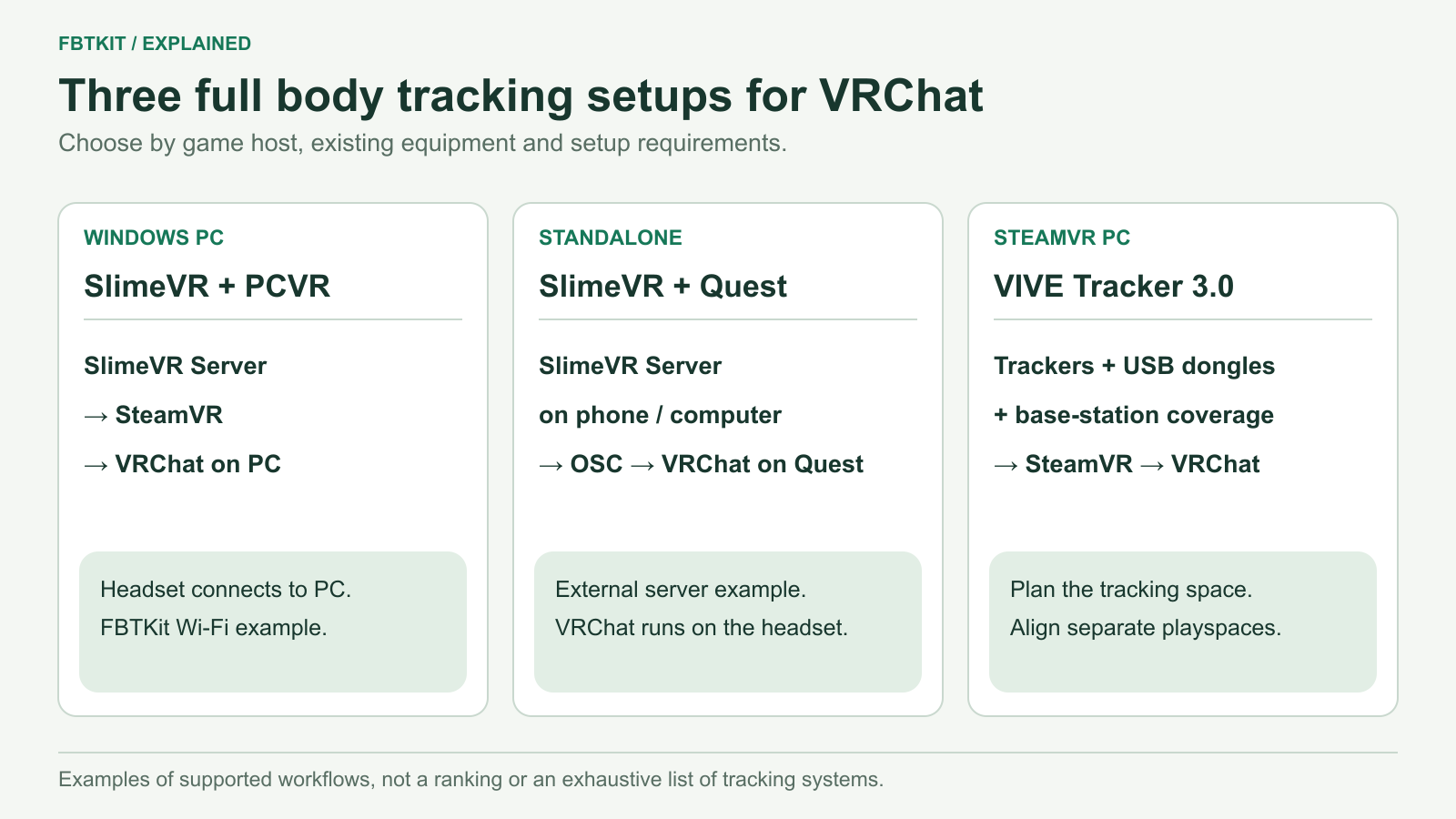
For VRChat full body tracking, first choose between a PC setup and the standalone headset version, then choose the tracking system. SlimeVR can send body tracking through SteamVR on a PC or through OSC to standalone VRChat. VIVE Tracker 3.0 is a different purchase: trackers, Lighthouse base stations, USB receivers and a SteamVR PC setup.
If you already use a Quest, that headset name alone does not settle the choice. Quest can display PCVR or run VRChat itself. The Quest PCVR versus standalone guide explains the equipment for each.
Three setups worth comparing
| Setup | What you need | Consider it when | Work to allow for |
|---|---|---|---|
| SlimeVR with Windows PCVR | Compatible sensors, SlimeVR Server, SteamVR, a VR-capable PC and your headset | You play PC VRChat and prefer a system without Lighthouse base stations | Network connection, body-role assignment, mounting, proportions and resets |
| SlimeVR with standalone Quest | Compatible sensors, SlimeVR Server on a supported phone or computer, and OSC output to VRChat on Quest | You want body tracking while keeping the headset version of VRChat | Keeping the server running, local-network communication and OSC setup |
| VIVE Tracker 3.0 with SteamVR | Trackers, compatible base stations, receiver dongles, mounts or straps, and a PC | You already own Lighthouse equipment or want to build around it | Room coverage, pairing, tracker roles and any mixed-headset alignment |
These are three configurations covered here, not every tracking product available. Read SlimeVR versus VIVE Tracker 3.0 for their equipment and maintenance differences. VIVE Tracker 3.0 and VIVE Ultimate Tracker are separate products; requirements for one should not be applied to the other.
What does full body tracking add in VRChat?
Your headset and controllers already tell VRChat about your head and hands. Additional body information gives its avatar system more to work with for hip, leg, torso and arm movement. The avatar still needs a suitable rig and calibration; more hardware cannot correct every avatar problem.
VRChat’s FBT guide describes body tracking and calibration for Lighthouse trackers. Its separate OSC Trackers documentation describes how software can send body-tracker data. SlimeVR supplies such software. Support for an input interface does not mean VRChat Support provides hardware troubleshooting for every compatible kit.
How many physical trackers do you need?
Do not compare shopping carts by the word “tracker” alone. Three VIVE Tracker 3.0 units placed at the hip and feet are a common basic addition to a headset and two controllers. SlimeVR calculates a body model from sensors on body segments, so its lower-body configuration starts with five sensors: chest, both upper legs and both lower legs. These are different measurement arrangements.
With SlimeVR, six sensors add a hip measurement; eight add both feet; ten add both upper arms. An extension can supply another sensor without being another independently powered wireless unit. See the configuration and point-by-point guide for the full diagram and package questions.
VRChat’s OSC interface currently accepts up to eight body-tracker inputs. That is a software input limit, not an instruction to buy eight SlimeVR devices. VRChat also cautions that sending every available point can make poor tracking data harder for its avatar system to accommodate.
Choose for the way you actually play
- Social sessions with occasional movement: start by choosing a workable system and essential body coverage. Budget for straps and setup time before optional tracking points.
- Sitting, reclining or expressive foot poses: compare hip and foot information separately. A kit with additional foot sensors answers a different need from one that only adds upper-arm information.
- Dancing or detailed upper-body movement: consider which joints matter to your movement, but ask for model-specific demonstrations before treating any kit as a proven performance winner.
- Existing Lighthouse room: calculate the cost of adding trackers to what you already own. The economics differ from buying the entire system from scratch.
For SlimeVR’s recommended body locations, consult its placement guide. For VIVE Tracker 3.0 hardware requirements, consult HTC’s specifications. These recommendations concern equipment fit, not a measured ranking of tracking accuracy.
What should you do after choosing?
- Build the complete shopping list. Include the server device or gaming PC, networking, base stations where required, straps, charging and any missing receivers.
- Connect the system before opening a busy world. Confirm the trackers appear and move correctly in the tracking software.
- Calibrate with a suitable avatar. Start with a normally proportioned humanoid, check your height and follow the current VRChat calibration prompts.
- Try simple movements. Turn, bend each knee and sit down. If a problem appears only after changing avatars, use the avatar check guide before buying more trackers.
Before a scheduled meetup
Open a private world and choose your avatar before your friends arrive. Check charging, connection and calibration, then try a turn, a knee bend and a seated pose. For a SlimeVR system, keep your reset control within reach. The pre-session checklist covers the practical preparation.
If tracking fails during the event, move somewhere clear before adjusting straps or recalibrating. If the fix is taking too long, rejoin with your normal headset-and-controller setup and troubleshoot later. Body tracking should not prevent you from joining the conversation.
For a SlimeVR PC setup, continue to the Windows installation guide. If you are still deciding what to purchase, use the full body tracking buying guide and the FBTKit cost breakdown.
Documentation checked September 29, 2026. This guide has not been validated by an FBTKit hardware test. SlimeVR’s documented SteamVR and standalone connections are described in its compatibility table and OSC guide.
