
Jul
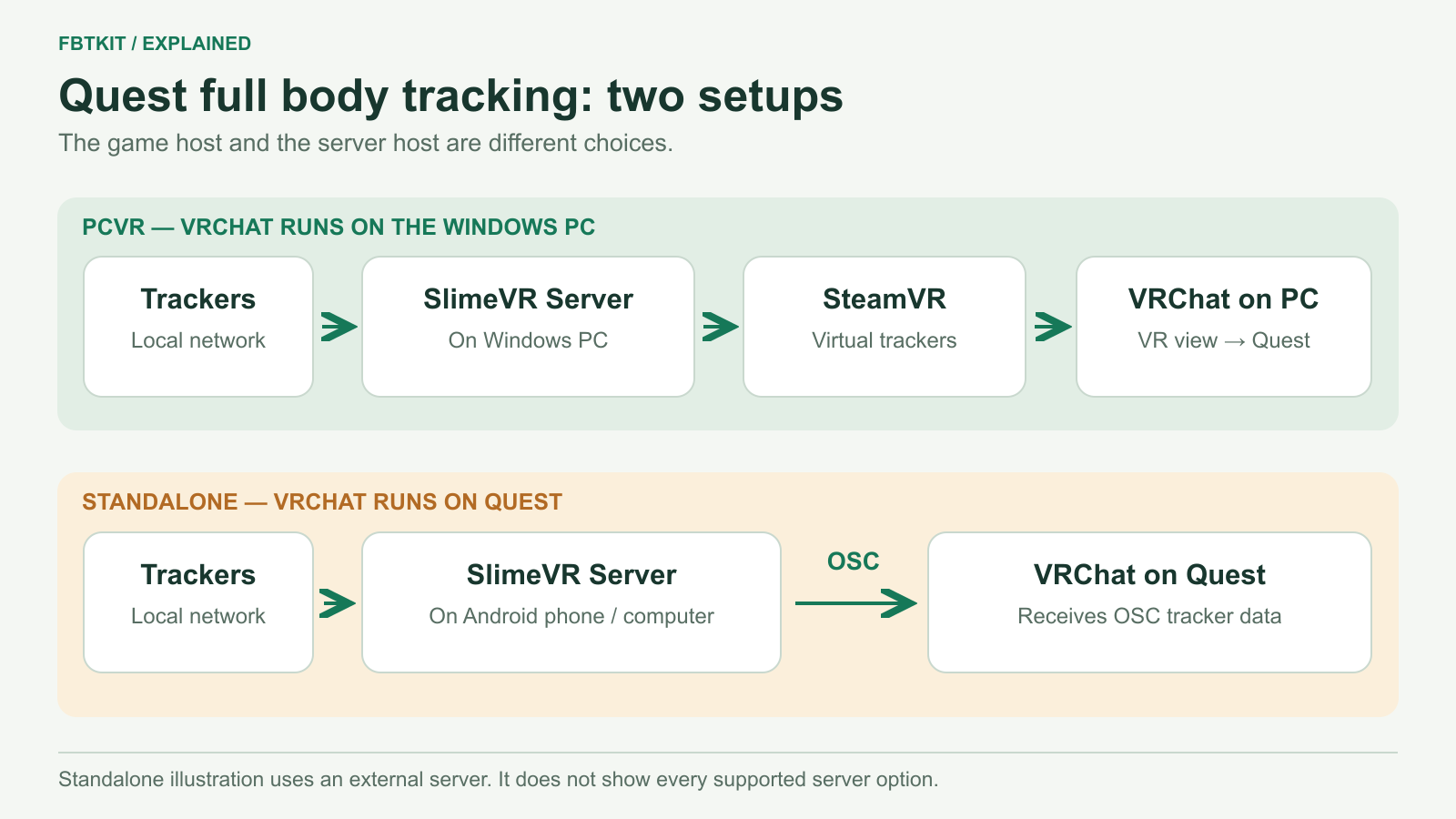
Quest 2 and Quest 3 can use SlimeVR full body tracking in two ways: play the PC version of VRChat through SteamVR, or play VRChat directly on the headset and receive tracking data over OSC. Choose where you want VRChat to run before buying trackers. For standalone play, you still need SlimeVR Server, but the computer running it does not have to be a gaming PC.
SlimeVR lists both headsets for these two setups in its compatibility table. That describes the software connection; it does not mean every Quest game accepts body trackers.
PCVR or standalone: choose your setup
| Question | Quest used for PCVR | VRChat running on Quest |
|---|---|---|
| Where does the game run? | On the Windows gaming PC | On the headset |
| Where does SlimeVR Server run in this example? | On the same PC | On a supported Android phone or a computer |
| How does body tracking reach VRChat? | SlimeVR sends virtual trackers to SteamVR | SlimeVR sends OSC tracker data to VRChat on Quest |
| Do you need a VR-capable PC? | Yes, to run the game and stream its view to Quest | No, but you need a suitable device for the server |
| When does this make sense? | You already play PC VRChat or need PC content | You want to keep playing the headset version |
The standalone version still has Android content restrictions. Adding trackers does not turn it into the PC version or remove its avatar component limitations. See VRChat’s Android content documentation.
Option 1: use Quest with a Windows PC
First get ordinary PCVR working with your headset and controllers. Start VRChat on the PC, enter a world, and check that turning your head and moving your hands works before adding body tracking. This makes a streaming problem easier to separate from a tracker problem.
Steam Link is one documented way to connect Quest to a PC running Steam and SteamVR. Valve lists Quest 2 and Quest 3 and specifies a 5 GHz wireless network for that stream; check its current hardware and network requirements before choosing a connection method.
Then install SlimeVR Server on Windows, connect the trackers, assign their body locations and finish mounting and body-proportion setup. Enable the required virtual trackers for SteamVR, then calibrate inside VRChat. Our illustrated SlimeVR setup guide for Windows covers those steps.
The tracker network and headset video link have different needs. FBTKit’s current Wi-Fi trackers use 2.4 GHz. That does not require putting a wireless PCVR video stream on 2.4 GHz: the trackers and server need to communicate on the same local network, while the headset can use the band required by its streaming app.
Option 2: keep VRChat on the Quest
For this setup, SlimeVR Server calculates the body pose on a phone or computer and sends it to the headset. You do not install SteamVR on Quest. OSC is the connection VRChat uses to receive the body information.
- Choose the server device. SlimeVR documents an Android app for Android 8.0 or later, with background operation enabled. A supported computer can also run the server even if it cannot render PCVR. Start with the official mobile installation instructions if using a phone.
- Set up your trackers in SlimeVR. Confirm that each tracker connects and responds, then assign its role and complete the mounting and proportion settings. Keep the phone or computer running during play.
- Send the data to the headset. In SlimeVR’s VRChat OSC settings, enable output and use the Quest’s local IP address when the server is on another device. Enable OSC in VRChat and complete its FBT calibration. Follow the official standalone OSC instructions for the current controls.
Keep the headset, server and trackers on a local network where they can communicate. A guest network that separates devices can prevent this connection even when every device has internet access.
SlimeVR also documents running the server directly on Quest, but currently describes that as a last resort because of Quest OS issues. A supported phone or computer is the more sensible starting point. Do not buy a kit assuming the only setup step is pairing it in the headset’s Bluetooth menu.
How many trackers should you buy?
Choose quantity by the body movement you want to add, after choosing PCVR or standalone. A SlimeVR sensor configuration and VRChat’s displayed tracking points are different counts. Adding foot sensors, for example, supplies foot orientation information; it does not change which version of VRChat you are running.
Use our 5, 6, 8 and 10 sensor comparison to choose body coverage. FBTKit offers those four tracker-count options on the kit page. Check the selected package contents before ordering, especially the straps and charging accessories for larger kits.
Before you order
- If you want PCVR, confirm your computer can already run your preferred VRChat content with Quest.
- If you want standalone, identify the phone or computer that will keep SlimeVR Server running.
- Check that your network supports the trackers’ connection requirements and allows devices to communicate.
- Choose body coverage from the quantity guide, then check the complete cost of trackers and accessories.
Documentation checked September 29, 2026. This guide explains documented SlimeVR and VRChat connections; it is not a hands-on test of FBTKit hardware or a claim of VRChat hardware endorsement.
