
Jul
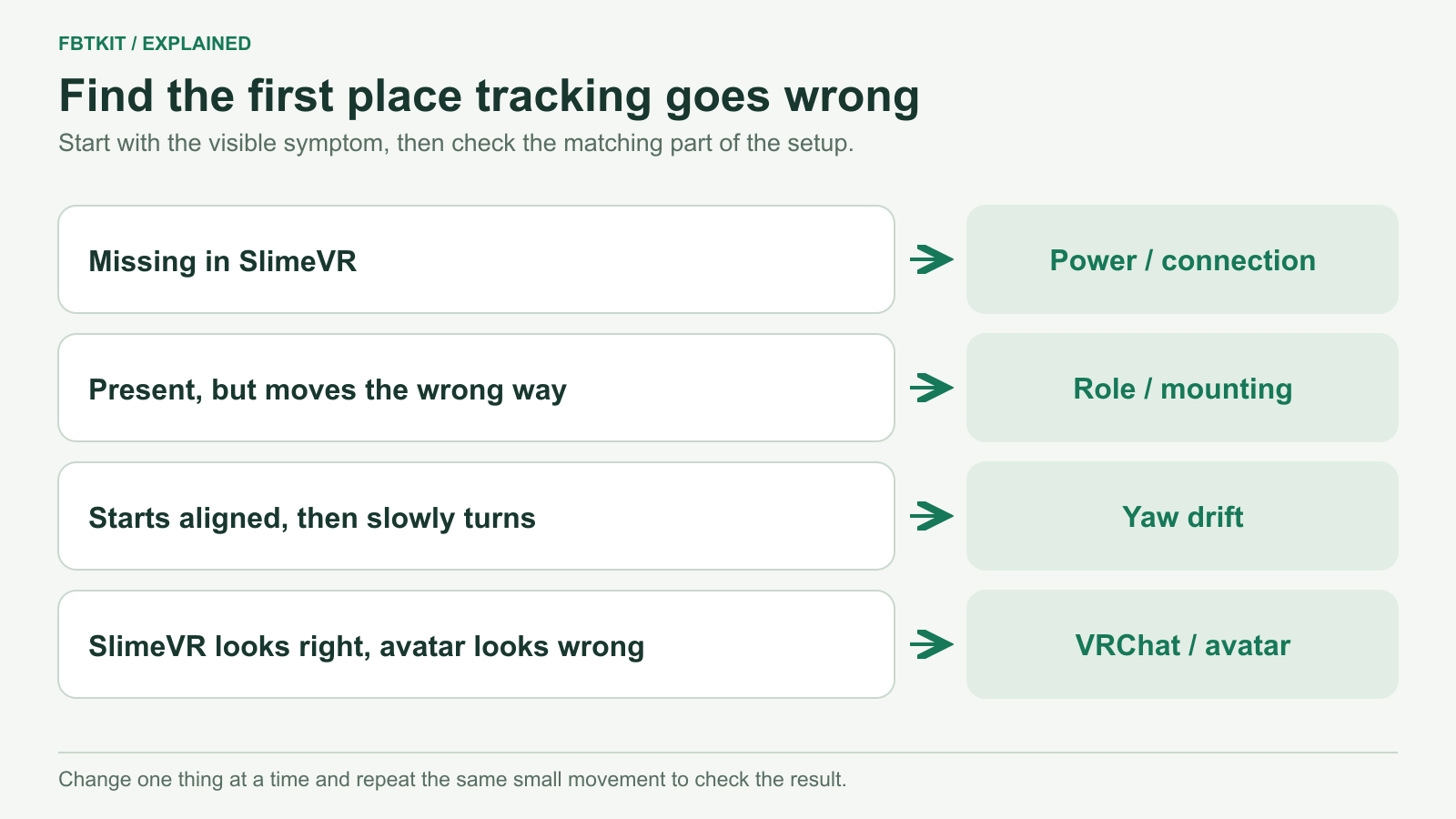
When full body tracking looks wrong, first check whether the problem is visible in SlimeVR Server or only in VRChat. A missing tracker, a leg pointing the wrong way, gradual rotation and an avatar floating above the floor need different checks. Start with the symptom below.
Choose the problem you can see
| What happens? | Check this first | Next guide |
|---|---|---|
| A tracker is missing, offline or stops updating. | Move that tracker and watch its entry in SlimeVR Server. If it is missing there, stay with power and connection. | Trackers not connecting or detected |
| A leg or foot moves the wrong way immediately. | Check left/right body assignments, physical placement and mounting calibration. | Wrong direction, drift and foot sliding |
| Tracking begins aligned, then slowly turns sideways. | Check that the tracker has not rotated on its strap. If it has stayed put, try a correctly posed yaw reset. | Gradual yaw drift |
| Feet slide, float or sink while all sensors remain connected. | Compare the SlimeVR skeleton with the avatar. Check mounting, body proportions and the headset’s floor level. | Avatar fit and floor problems |
| Standing works, but sitting twists or crosses the legs. | Check whether the chair moves a tracker, then compare the same seated pose in SlimeVR and VRChat. | Seated tracking problems |
| Only one avatar looks wrong. | Recalibrate that avatar and compare it with an avatar that already worked. | Avatar comparison and IK settings |
| A movement arrives late or freezes, then jumps. | Compare sensor response, the SlimeVR skeleton and the runtime or avatar. | Find where the delay begins below |
| A point trembles while you try to hold still. | Check the physical mount, then compare the sensor, skeleton and avatar. | Check jitter below |
Use one small movement to locate the problem
Move one lower leg while watching SlimeVR, then repeat the movement in VRChat. If the sensor stops responding in the server, investigate the connection. If it responds but the wrong leg moves, inspect its role. If the server’s skeleton looks reasonable and only the avatar twists, investigate avatar calibration and fit.
Movement is delayed or freezes, then jumps
Make a slow, repeated knee bend. First watch the matching sensor’s rotation in SlimeVR, then its skeleton, then the SteamVR tracker or VRChat avatar. You are locating the first visible delay, not measuring latency in milliseconds.
- The sensor itself pauses: check its connection and whether only that unit or every unit is affected. With Wi-Fi trackers, inspect the network route; with receiver trackers, inspect that receiver’s connection.
- The sensor responds but the skeleton lags: keep the physical connection unchanged and check the server’s tracking settings. If you recently changed a filter, compare its previous value using the same motion.
- SlimeVR is responsive but the runtime or avatar lags: compare another avatar or a simpler world and check the PCVR streaming/runtime path, or the OSC destination and network for standalone.
Continuous motion that trails behind is different from updates stopping and catching up in a jump. A leg pointing the wrong way immediately is an alignment fault, not evidence of delay. Once you locate a pause upstream, use the connection checks.
A foot or joint jitters while you hold still
Check for a loose case, clothing movement or a strap touching the chair. Hold a comfortable still pose, watch the affected sensor and server skeleton, then repeat one slow bend. If the sensor shakes with a moving mount, stabilize the mount before recalibrating.
If the mount stays put, compare where the trembling appears. Motion already visible in one sensor’s server entry warrants checking that sensor and its calibration; a steady server skeleton with a trembling avatar points to the application or avatar. Check a familiar avatar before altering body lengths. A yaw reset corrects heading and is not a general cure for jitter. Avoid changing several smoothing and calibration settings together, because that makes the result harder to interpret.
Did the problem start after changing the room?
SlimeVR’s body sensors estimate rotation with IMUs and do not need a camera to see them, as SlimeVR explains. Dim light does not directly change that inertial measurement. Your headset’s visual tracking is a separate system: lighting, glare or a changed room can affect supported camera-based tracking. Follow your headset’s environment guidance; VIVE Focus Vision’s instructions, for example, identify those visual conditions.
After moving furniture, check whether a chair now pushes a strap or whether the affected area has connection interruptions. With VIVE Tracker 3.0, also check the unobstructed base-station sightlines required by HTC’s guidance. Do not apply that optical-occlusion explanation to a SlimeVR body sensor.
After moving a tracker, recalibrate its mounting
A strap can rotate while the device remains connected. Restore a stable position before calibrating. Moving a tracker to another body region also requires the matching role; for example, Hip and Waist are separate SlimeVR assignments. Use the placement guide to identify the correct region and the calibration guide for the sequence.
If the same fault keeps returning
Share the tracker model, SlimeVR version, your SteamVR or OSC route, and a short description of where the problem first appears. A clip of the same movement in the server and in VRChat is useful. For a purchased kit with a sensor error or a device that will not power on, contact its seller before applying DIY firmware or wiring instructions.
This symptom guide uses SlimeVR’s common issues and VRChat’s FBT documentation, checked September 29, 2026. It is documentation-based; no FBTKit hardware test is claimed.
