
Trackers Not Detected in VR: What to Check First

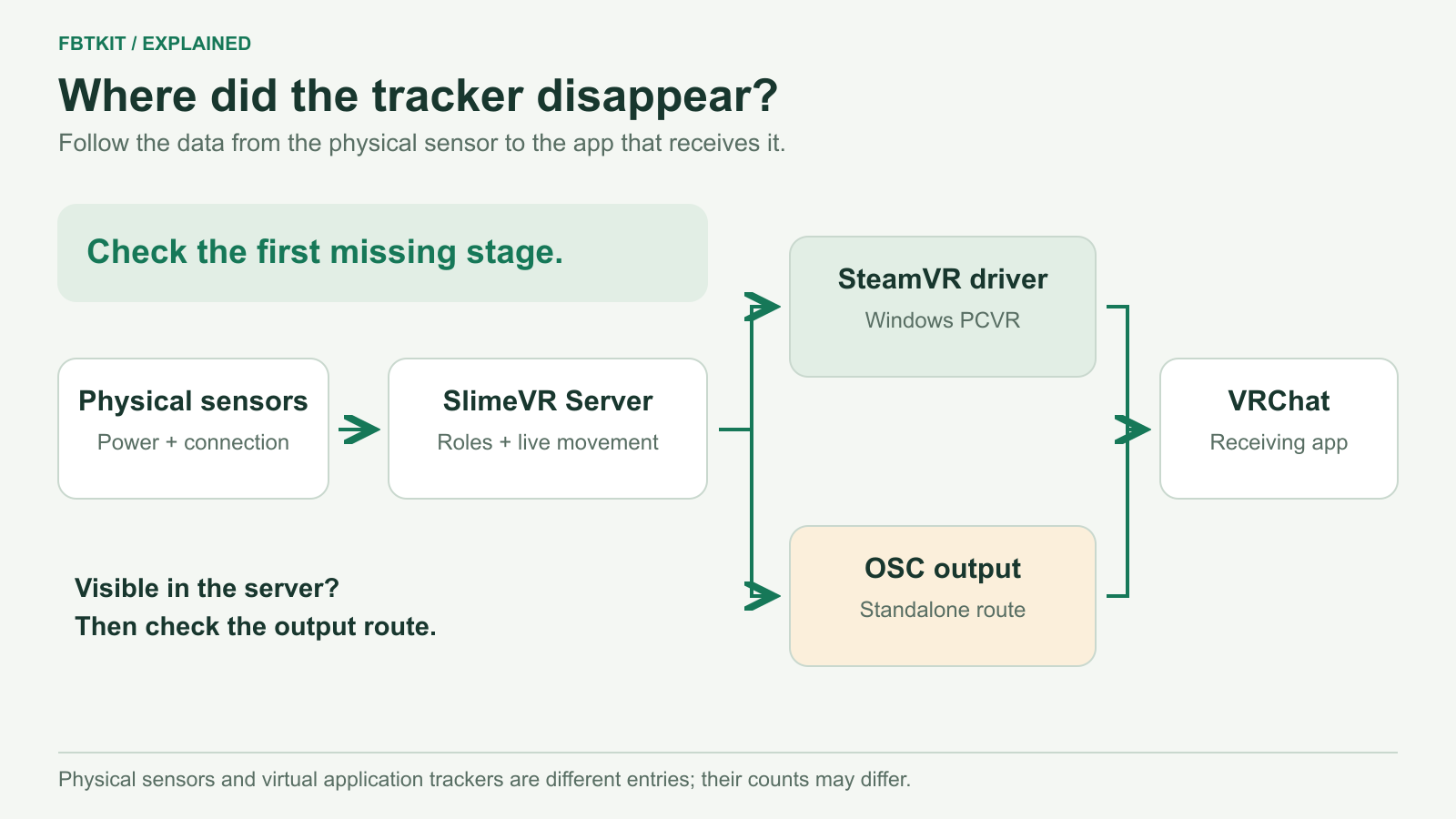
Tracker detection guide comparing one missing device with an all-device failure across the shared server and connection path

When VR trackers are not detected, find the first layer where they disappear. Confirm that the physical device is powered, then look for it in the server or vendor software that directly owns it. If it is absent there, inspect its documented network or USB path. If it appears there but not in SteamVR or VRChat, move downstream to virtual-tracker output and role assignment. Treat one missing device as a local problem until evidence says otherwise; treat every missing device as a shared-path problem. Repeat a startup only after changing one controlled condition. If the same boundary fails again, stop, save what you observed, and use the current official support route.

If the symptom is still unclear, start with the broader symptom checklist. This page begins once you can say that a tracker is absent, rather than present but delayed, unstable, drifting, or badly calibrated.

Follow the visibility chain in order

Detection is a chain. Each layer needs positive proof before the next layer can work. Skipping ahead often creates more changes without revealing where the device was lost.

Layer Positive proof If the proof is missing
Physical device The device shows the vendor’s documented awake state or produces an activity change in its own software. Stay at power and hardware. Do not calibrate or change an avatar.
Device server or vendor app The expected device entry appears, and moving that device changes the matching entry when the software supports that check. Inspect the device’s documented connection path.
Network, USB, or receiver path The exact path required by that tracker system is present and reaches the host software. Work on only that branch. Do not mix network and USB changes.
VR runtime or bridge The intended virtual tracker output appears in SteamVR or the runtime named by the setup guide. Check whether virtual trackers are enabled and whether the bridge is running.
Role and application The visible tracker is assigned to the intended body role, and the application exposes its full-body mode. Correct assignment. The physical tracker is already detected upstream.

Prove that the hardware is awake

Lay out the trackers and count them before opening more settings. Check the one that is missing against a known working device of the same setup. Use the current maker instructions for its power control and awake indication. Do not assign a meaning to a light color unless the current official guide for that exact hardware defines it.

For SlimeVR, the official connecting-trackers guide says official trackers must be turned on during connection. It also describes identifying a connected unit by moving it and watching the matching entry in SlimeVR Server. That is stronger proof than assuming a charged device is connected. If a normal first-time installation is incomplete, return to the setup and calibration workflow instead of rebuilding the session from the middle.

Check the first software list that should contain it

Open the software closest to the hardware. For SlimeVR trackers, that is SlimeVR Server. Do not start with VRChat. The current SlimeVR setup flow connects physical trackers before it assigns body locations, configures mounting and proportions, or spawns virtual trackers for SteamVR.

Compare the expected count with the entries in that first software list. Move only the missing unit and a known working unit. If the working unit changes its entry and the missing one produces no entry, the failure remains at power or the path into the server. If both appear in SlimeVR Server but one does not appear downstream, the physical connection has already passed.

Use the SlimeVR setup sequence when you need the wider order across software, network, placement, and VRChat. Post 1832 stays on the narrower question of where a missing device disappears.

Trace one connection branch at a time

Use the network branch only when the tracker system reaches its server over the local network. SlimeVR’s current quick setup says the trackers and the host running the server need to use the same intended network path. If the trackers reach the network but cannot find the server, the official common-issues page treats that as a separate symptom from a tracker that reaches the server but does not appear in SteamVR. Follow that current page rather than guessing a port or disabling security controls at random.

Use the USB or receiver branch only when the documented setup actually depends on it. That may be a receiver, a data connection used during setup, or another hardware bridge. Confirm that the exact component appears where its maker says it should appear. A device accepting charge does not by itself prove that a data or receiver path exists. Do not install a generic driver or cycle through ports without a hardware-specific instruction and a way to observe the result.

If the physical trackers appear in their server but the virtual trackers do not appear in SteamVR, inspect the output layer. SlimeVR’s configuring-trackers page separates connected physical trackers from the virtual trackers selected for SteamVR. Once the runtime sees the tracker, check its body role. VRChat’s current guide places SteamVR pairing and assignment before application calibration. A visible tracker mapped to the wrong role is an assignment problem, not an undetected device.

Decide whether the failure is local or shared

One missing device usually gives you a comparison. Keep the working units unchanged and compare the missing unit’s power proof, entry in the device server, connection branch, virtual output, and role. If the fault follows the same physical unit, stay local. If the physical unit appears but the wrong virtual role moves, correct assignment instead.

When every device is missing, look for the component they share. That could be the server application, the host, the intended network path, one documented USB receiver, or the bridge into the VR runtime. Start at the lowest shared layer. Restarting each tracker individually is low-value when none of them can reach the same server.

The one-versus-all split is a routing clue, not a diagnosis by itself. Confirm it in the software lists. One missing entry in a list of working trackers points down a different path than an empty list.

Stop when another restart will not add evidence

A controlled retry has a purpose: change one condition, repeat the same startup, and check the same software boundary. If the device fails at the same boundary again and you have no new condition to test, stop. Repeating the identical restart can erase useful context without creating new evidence.

Save a small incident record before contacting support:

  • How many devices are expected, and whether one or all are missing.
  • The first software list where the missing device no longer appears.
  • Whether the system uses the documented network branch, USB or receiver branch, or both at different stages.
  • The last known working session and the one change made before the failure, if known.
  • A screenshot of the relevant device list and the exact controlled retry already attempted.

That record tells the hardware maker or software project where to begin. It is more useful than a long list of random restarts, and it prevents a support answer for one connection method from being applied to another.

Route the next symptom after detection returns

Once every expected tracker is visible in the correct upstream and downstream lists, stop using the detection workflow. Motion that arrives late belongs in the response-delay diagnosis. A visible point that shakes or jumps belongs in the unstable-motion diagnosis. A skeleton that is present but visibly wrong belongs in the bad-calibration recovery. If detection is stable and you are ready for the normal application step, use the beginner calibration sequence.

For FBTKit hardware, use the current FBTKit kit details for the available tracker-count options, included parts, and setup notes. The correct detection branch still comes from the first software layer where the device disappears.

FAQ

Which software should show a SlimeVR tracker before SteamVR?

SlimeVR Server should show the physical tracker before SteamVR can receive the selected virtual-tracker output. If the tracker is absent from SlimeVR Server, stay at power and the documented connection path. Do not use SteamVR or VRChat calibration to solve an upstream absence.

What does one missing device tell me that an all-device failure does not?

One missing device lets you compare its power, connection entry, virtual output, and role with devices that still work. When every device is missing, inspect the server, host, network, receiver, or runtime bridge they share before changing individual trackers.

Does a wrong body role mean the tracker is undetected?

No. If the tracker is visible in its server or VR runtime but moves the wrong virtual body point, detection has passed and assignment is wrong. Correct the saved role or side using the current software guide instead of restarting the physical connection path.

When is USB part of a tracker detection check?

Check USB only when the hardware’s documented path uses a receiver, data connection, or setup handoff over USB. Confirm the exact component in the location named by its maker. Do not assume a network tracker needs a USB fix or that charging proves a data connection.

When should I stop repeating the same startup sequence?

Stop when one controlled retry reproduces the same missing-device boundary and you have no new condition to test. Save the expected count, the first software list where the device disappears, the connection branch, and a screenshot. Another identical restart will not add evidence.

Official references

Official documentation and current FBTKit product details were checked on August 10, 2026. This guide does not claim a measured FBTKit detection test, a device-specific LED code, a port number, a Wi-Fi frequency, a driver result, or a customer outcome.

Leave a Reply