
Blog
How to Reset a Bad Full Body Tracking Calibration
Jul
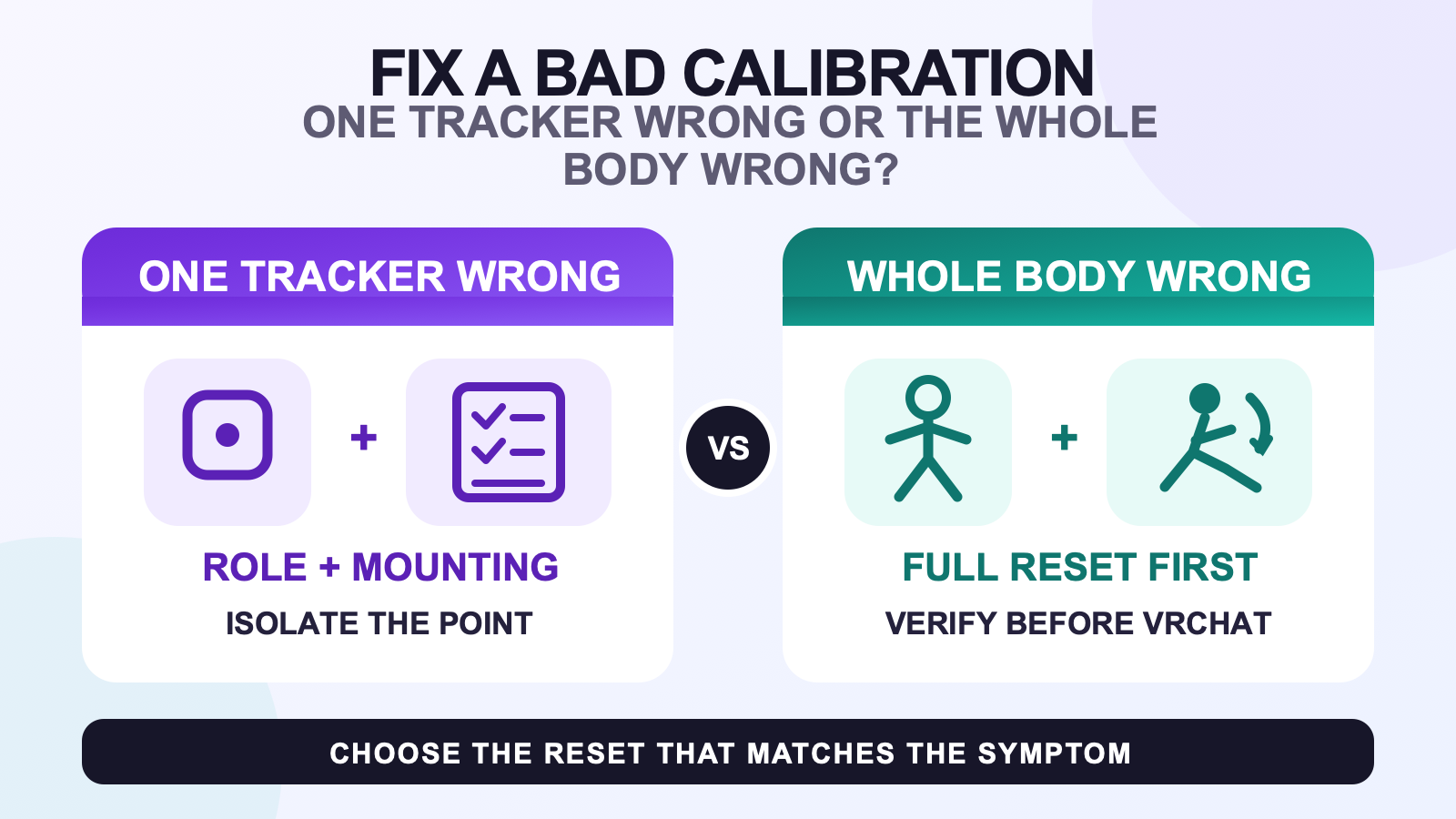
If a full body calibration is visibly wrong, stop and fix the layer that failed before calibrating in VRChat again. Check tracker roles, left and right assignment, physical mounting, and mounting orientation first. Use a full reset when the whole SlimeVR skeleton is rotated or displaced, a mounting reset only when the mounting estimate is wrong, a yaw reset when heading is the only problem, and body-proportion reset only when the virtual skeleton remains the wrong size after mounting and a full reset.
That order keeps a single bad tracker from turning into a whole-system reconfiguration. If you are still preparing the physical setup, use the pre-calibration wear checklist first. The steps below begin after calibration has produced an obviously bad result.
Choose the reset that matches the symptom
SlimeVR uses several resets for different jobs. Treating them as interchangeable makes it harder to tell what failed.
| What you see | Use this action | What to check next |
|---|---|---|
| One tracker or one limb is wrong | Inspect that tracker first, then run a full reset after correcting it. | Confirm connection, body role, left or right assignment, strap position, and mounting orientation. |
| The whole skeleton is rotated, offset, or not under you | Run a full reset in the pose shown by the current SlimeVR flow. | Look forward, hold the pose through the countdown, then check that all points face the right direction and sit under you. |
| The skeleton faces the wrong heading but its pose and proportions look right | Use yaw reset, also called quick reset. | Confirm all trackers face their defined forward orientation. If heading keeps changing during the session, use the VR leg drift guide. |
| Automatic mounting estimated device orientation incorrectly | Use mounting reset and copy the ski pose shown by the current wizard. | Remember that mounting reset overrides manually selected mounting orientation. |
| Tracker directions look correct, but body lengths and joint positions remain wrong | Review body proportions last. | Do this only after mounting is correct, a full reset is complete, and basic movements go in the right direction. |
| SlimeVR looks correct, but the avatar is still wrong in VRChat | Move to VRChat FBT calibration or test another avatar. | Do not keep changing SlimeVR settings when its skeleton already passes the checks below. |
Do not confuse these session resets with IMU calibration. SlimeVR documents a separate power-on sensor calibration that requires the tracker to remain flat and stable for 20 to 30 seconds. If that start-up step was interrupted, correct it before using session resets to judge the pose.
Use this recovery order
- Stop and name the failure. Decide whether one point is wrong, the whole skeleton is wrong, heading alone is wrong, or only the avatar is wrong. Take a screenshot if the problem is hard to describe.
- Inspect the physical and assigned tracker. Check that every device is connected, assigned to the intended body role, on the correct side, and facing the mounting orientation saved in SlimeVR. Correct only the point that is clearly wrong.
- Return to the full-reset pose. SlimeVR’s current setup documentation describes standing straight with legs vertical but not together, trackers facing their designated direction, and the head looking forward. Hold the pose until the countdown finishes.
- Run a full reset. This is the baseline when the entire calibration is bad. A full reset aligns tracker yaw with the head tracker and zeroes pitch and roll. After it finishes, check the skeleton before changing anything else.
- Redo mounting only when mounting is the fault. If tracker roles are correct but device orientation was estimated incorrectly, run mounting reset in the ski pose shown by the installed SlimeVR wizard. Do not improvise the pose or use mounting reset as a general fix.
- Check proportions only after the reset passes. If directions and movement are correct but the skeleton’s lengths still do not match, open the body-proportion workflow. Resetting all proportions is not a fix for a swapped left tracker or one loose strap.
- Calibrate the application last. Once the SlimeVR skeleton is correct, continue to the normal VRChat calibration. Readers who need the normal sequence rather than recovery can use the beginner calibration routine.
This sequence also tells you where to stop. If a full reset fixes the whole skeleton, there is no reason to erase body proportions. If correcting one tracker fixes one limb, there is no reason to rebuild the rest of the setup.
Tell one bad tracker from a system-wide problem
A local problem stays attached to one device or one body role. The same knee, foot, hip, or arm remains wrong while the other points respond normally. Move one physical tracker at a time and watch which virtual point responds. If the wrong virtual point responds, check its saved role and left or right assignment. If the correct point responds but rotates the wrong way, inspect physical and configured mounting orientation.
A system-wide problem affects several points together. The whole skeleton may face away from the headset, appear displaced from you, or move with consistent but incorrect orientation. That pattern supports a full reset because the shared reference is wrong. If every tracker looks correct in SlimeVR and only one avatar bends or stands badly, the problem has moved to the avatar or VRChat calibration layer.
Change one variable, repeat the same movement, and watch whether the fault stays local or moves with the system. Randomly reassigning several trackers at once removes that evidence.
Verify the result before opening VRChat
A reset is not successful because the button completed. It is successful when the same short test produces a correct, repeatable skeleton.
- Stand straight and look forward. The virtual tracker points should face the expected direction and sit under the matching body areas.
- Move one leg, then the other. Confirm that left and right are not swapped and that only the intended side responds.
- Bend both knees and return to standing. Watch for one point that flips, rotates, or stays behind.
- Take two normal steps, stop, and turn each way. The skeleton should remain centered rather than rotating as a separate block.
- Sit and stand once if seated use matters to you. Do not recalibrate around a tracker that physically moved during the motion.
- Repeat the one movement that exposed the original failure. If it now passes twice without another change, continue to VRChat calibration.
If one point fails, return to that tracker’s role, side, position, and mounting orientation. If several points fail together, return to the full-reset pose. This prevents an unresolved local fault from being hidden by another application calibration.
Use body-proportion reset only for a proportion problem
Body proportions describe the virtual skeleton’s lengths. They do not repair a disconnected tracker, a left and right swap, a loose device, or an incorrect mounting orientation. SlimeVR’s body configuration documentation requires correct mounting, a completed full reset, and basic movement that already works before automatic proportion calibration.
Reset all proportions only when tracker directions are correct but the skeleton’s scale or joint positions remain wrong. Follow the current body-proportion flow, keep the headset and trackers working as the interface requires, and verify the result in the SlimeVR or SteamVR skeleton before judging it through an avatar.
Finish the bad-calibration recovery before checking kit details
If alignment gets worse gradually during a session, use the drift guide instead of repeating the full bad-calibration workflow. If a tracker disconnects, jitters, or is not detected, route the symptom through the full body tracking troubleshooting checklist. If the entire setup sequence is incomplete, return to the broader setup and calibration workflow.
If you use FBTKit hardware, review the current FBTKit tracker and setup details for tracker-count options, included parts, and setup notes. Reset choice still depends on the visible symptom and SlimeVR’s current instructions, not the number of trackers in the pack.
FAQ
Which reset should I use if only one tracker looks wrong?
Check that tracker’s connection, assigned body role, left or right side, physical position, and mounting orientation first. Correct the local issue, then run a full reset. Do not reset all body proportions to fix one tracker.
What is the difference between a SlimeVR full reset and yaw reset?
A full reset aligns tracker yaw with the head tracker and zeroes pitch and roll, so it is the baseline for a whole calibration that is visibly wrong. A yaw reset, also called quick reset, corrects heading without recalibrating pitch and roll.
When should I use a mounting reset?
Use mounting reset when automatic mounting orientation is wrong and you can copy the ski pose shown by the current SlimeVR wizard. Mounting reset overrides manually selected mounting orientation, so it should not be used as a general first step.
How do I know a bad calibration is fixed?
In SlimeVR, check that the tracker points face the expected direction, sit under the matching body areas, follow the correct left and right sides, and stay centered through standing, steps, turns, a knee bend, and any seated motion you use. Recalibrate VRChat only after those checks pass.
Official SlimeVR sources
- SlimeVR glossary: full reset, mounting reset, and yaw reset
- SlimeVR quick setup and reset tutorial
- SlimeVR tracker reset pose and verification
- SlimeVR body proportions configuration
Official documentation and current FBTKit product details were checked on August 10, 2026. This guide does not claim a measured FBTKit recovery test or customer result.
