
Jul
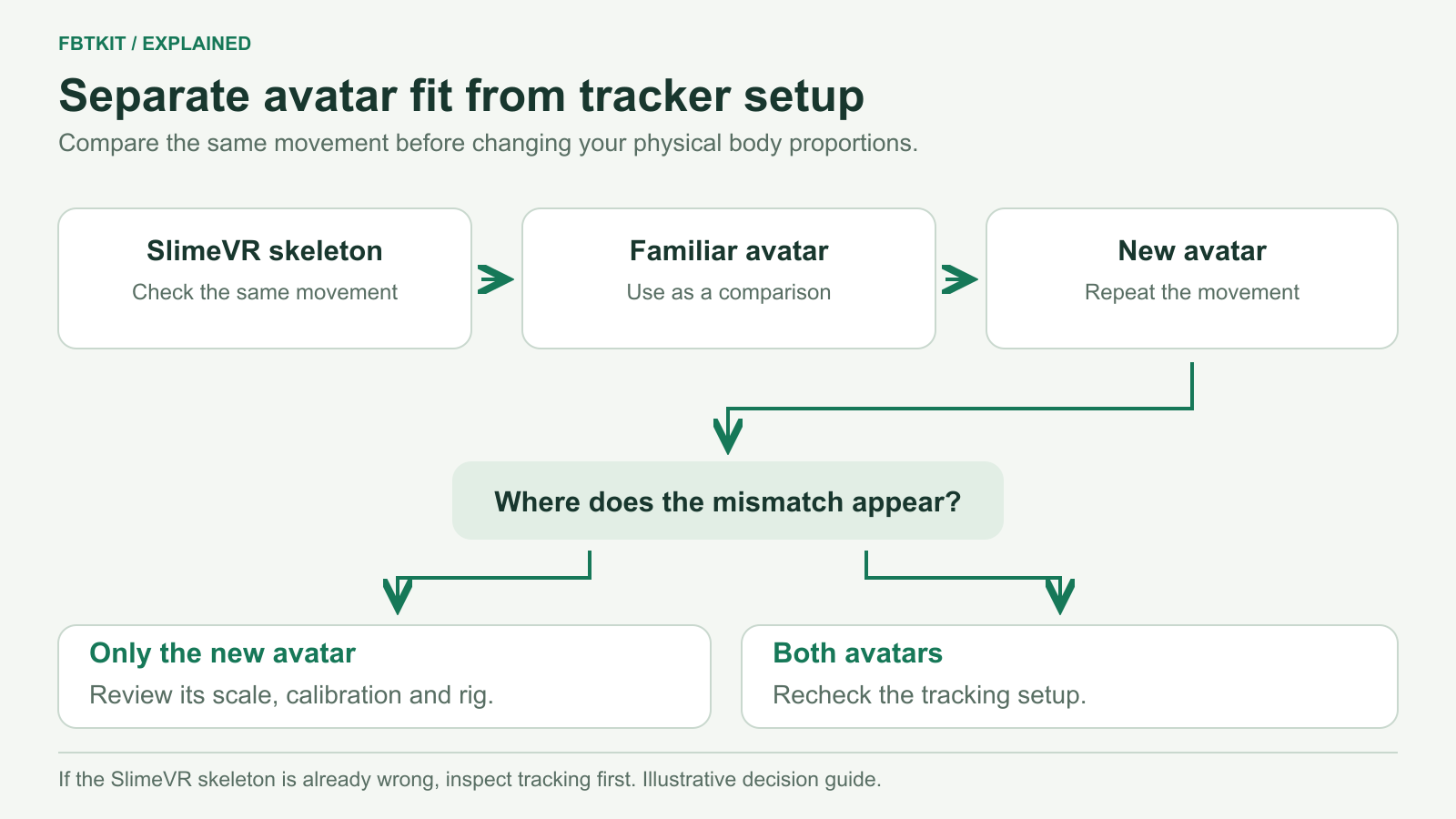
If full body tracking works on one VRChat avatar but looks wrong on another, start with the new avatar’s calibration, scale and rig. Keep your physical tracker positions and SlimeVR body measurements unchanged while comparing them. If both avatars show the same error, check the tracking setup before changing the avatar.
Check the skeleton before the avatar
In SlimeVR, lift each leg slightly, bend the knees and lean forward. Confirm that the matching side moves in the expected direction. If the server’s skeleton already crosses its legs or points a foot backwards, correct placement and mounting using the alignment troubleshooting guide.
Then load an avatar that worked previously. Use a mirror and repeat a short sequence: stand normally, shift your weight, take a small step, bend slightly and return to standing. Change to the new avatar, calibrate it and repeat. Comparing one specific movement is more useful than comparing two different poses.
Calibrate with the correct height and floor
In VRChat, check User Height and make sure your playspace does not have an unintended floor offset. Open Calibrate FBT, align with the calibration pose, then stand upright and look forward before confirming with both Interact buttons. Looking down while confirming changes the pose used for calibration.
SlimeVR calibration and VRChat calibration do different jobs. SlimeVR establishes the sensor-based body estimate; VRChat fits the incoming tracking points to the selected avatar. Use the calibration guide if either step is incomplete.
Match the symptom to the next adjustment
| Symptom | Next check | How to interpret it |
|---|---|---|
| Both avatars float or sink by a similar amount. | Check the headset floor boundary, height and playspace offsets. | A shared vertical offset points beyond the new avatar alone. |
| Only the new avatar has long, stiff legs or a poor viewpoint fit. | Compare Avatar Measurement modes and recalibrate. | Its body proportions may fit your tracking points differently. |
| Head and hip positions compete, stretching the torso. | Compare the IK Lock options, one at a time. | Different locks prioritize different tracked positions. |
| The pose changes when using joystick movement or an avatar toggle. | Check locomotion and avatar animation settings. | An animation can affect what you see even with stable tracking. |
| The same knee collapses only on this avatar. | Ask the creator to check its humanoid rig and knee bend. | More physical trackers may not solve a rigging problem. |
Understand the useful IK settings
Avatar Measurement can match by arm span or height. Try the other mode and recalibrate before judging the result. A change that improves the hands but worsens the legs is a fit tradeoff, not proof that your physical sensors are faulty.
Lock Hip prioritizes the tracked hip position; Lock Head prioritizes the head/view position; Lock Both constrains both. The last option can create awkward spine angles when those positions do not fit the avatar’s proportions. Compare a normal stance and one forward lean after changing a lock.
Locomotion Animation can change how the base walking, crouching and prone animations interact with FBT. If a pose is correct while stationary but changes during joystick movement, compare that setting. An avatar’s own animation setup can still affect the result. The VRChat IK documentation explains these controls.
When the avatar needs a rig correction
Very different limb and torso proportions can make matching a real body difficult. VRChat’s rigging guidance also calls for appropriate knee and elbow bend directions and a valid hip/spine chain. If one avatar repeatedly bends the wrong way while another works, show its creator the exact movement that causes it.
Do not rewrite SlimeVR’s real-world body measurements to compensate for every avatar change. Its body configuration guide distinguishes body measurements from optional avatar/application offsets. Save a working baseline before experimenting with an offset for a specific unusual avatar.
Finish with a seated check
Sit in your usual chair, place your feet normally, lean a little and return upright. If you can comfortably stand, check the transition back to standing as well. Confirm that the chair has not pushed a physical tracker out of place. If only this transition fails, use the seated tracking guide before changing several IK settings together.
Based on VRChat’s calibration and rigging guidance and the sources linked above, checked September 29, 2026. The comparisons are troubleshooting steps, not an FBTKit hardware or avatar compatibility test.
