
Jul
Quick answer: full body tracking works best when every tracker is placed on the body point your software expects, strapped firmly enough to avoid rotation, calibrated in a neutral pose, and checked with a short movement test. If your avatar twists, slides, leans, or drifts, start with placement, strap tightness, tracker orientation, room conditions, and a clean recalibration.
Full body tracking can make standing, sitting, dancing, leaning, and posing feel far more natural in VR. It can also feel frustrating when one tracker is slightly loose or a calibration step is rushed. Most setup problems come from simple details, so a repeatable placement routine is worth building.
This guide covers tracker placement, calibration, room conditions, comfort, and troubleshooting. Exact menu names and body points vary by hardware and app, so follow your own setup guide.
Start With The Body Points Your Kit Uses
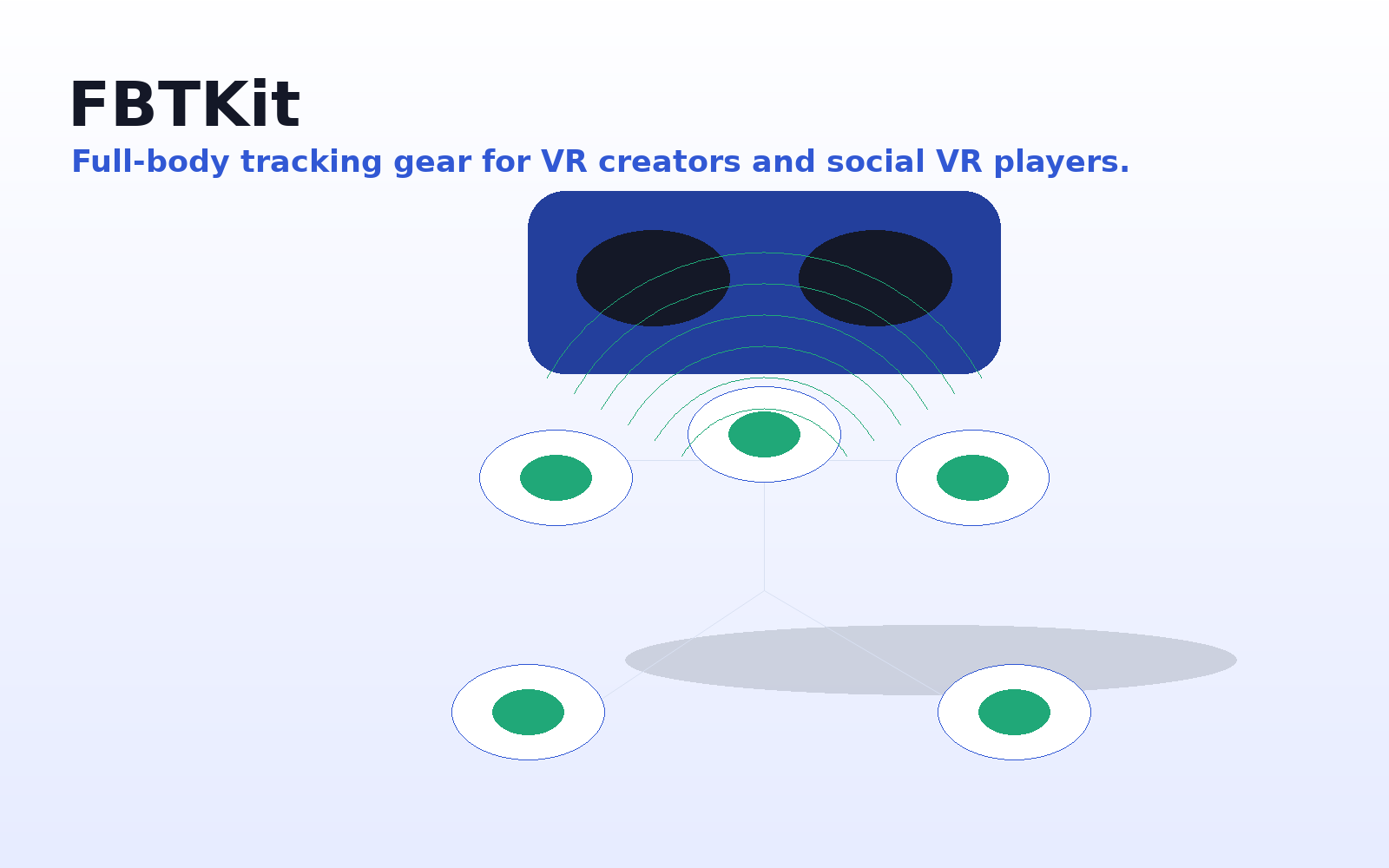
Before putting anything on, identify which tracker belongs to which body point. Many full body tracking setups use a waist or hip point and foot or ankle points. Other setups may add knees, thighs, chest, elbows, or additional points depending on the kit and software. Labeling trackers, straps, or storage slots can save time if you set up often.
The goal is to make your physical body match the body model your tracking software expects. If left and right foot trackers are swapped, if a waist tracker is turned sideways, or if a knee tracker sits too low, the avatar may still move but look wrong. Small placement errors often show up as inward-pointing feet, leaning hips, unstable knees, or odd avatar height.
Tracker Placement: Body Point By Body Point
- Waist or hip tracker: place it near the center of your body where it can follow your pelvis rather than loose fabric. It should not swing when you turn your torso or sit down.
- Foot or ankle trackers: keep each tracker on the correct side and positioned so it moves with the foot instead of sliding around the shoe, sock, or strap.
- Knee or thigh trackers: if your setup includes upper-leg points, place them where the strap can stay put without cutting into the leg or rotating on loose pants.
- Chest or upper-body trackers: if your kit uses an upper-body point, keep it centered and secure so it moves with your torso when leaning, bending, or turning.
Make Placement Repeatable Every Session
Repeatability matters as much as the first correct placement. If the tracker sits in a different spot each time, calibration may need more correction and avatar movement may feel less predictable. Use the same strap, side, and orientation whenever possible.
Do one quick physical check before calibration. Stand normally and confirm that nothing is upside down, swapped, twisted, or sitting on fabric that slides. Step forward, sit, turn, lift each foot, and crouch slightly. If a tracker visibly shifts, fix the strap first.
A Practical Calibration Flow
Calibration should be treated as part of setup, not as a button you press as fast as possible. Start in a clear space, stand in the required pose, and keep your body neutral. If the app asks for a specific stance, use that stance rather than a casual variation.
Run calibration only after all trackers are attached and visible to the software. Wait for the app to recognize the body points, then follow the prompts carefully. Avoid shifting your feet or leaning while the system is reading the pose. After calibration, run a short test routine.
- Stand still and check whether the avatar posture looks neutral.
- Turn left and right to confirm the waist and feet follow naturally.
- Lift one foot at a time and watch for foot rotation or sliding.
- Sit down and stand back up to test hip and leg behavior.
- Lean forward, lean slightly to each side, and return to center.
If any movement looks wrong, fix the physical setup first. Recalibrating repeatedly without checking straps can waste time. When placement looks stable, recalibrate and repeat the same short test.
Room Conditions That Can Affect Tracking
Your room does not need to be fancy, but it should be predictable. Clear the floor so you are not stepping over cables, furniture, bags, or reflective objects. Make sure you have enough room for the movements you plan to do, including sitting, crouching, stretching, or dancing.
Some tracking systems are sensitive to visual clutter, reflections, lighting, blocked sensors, wireless interference, or body occlusion. Because different hardware handles rooms differently, follow the requirements for your setup. If tracking suddenly behaves differently, ask what changed: lighting, furniture, clothing, mirrors, headset position, charging state, or where you are standing.
Clothing is part of the room-and-body setup too. Smooth pants can let thigh or knee straps slide. Thick layers can make waist placement less precise. Long jackets or loose shirts can cover or tug on trackers. Choose clothing that lets straps stay in place without discomfort, especially if you plan to move a lot.
Comfort For Long Sessions
A secure tracker should not feel painful. For longer VR sessions, comfort is a setup requirement, not a luxury. If a strap creates a sharp pressure point or distracts you every few minutes, you will move differently.
Start slightly snug, then test movement. The tracker should stay in place when you step, turn, sit, and crouch, but the strap should not dig into skin or block normal movement. During long sessions, take short breaks to check strap pressure and charging state.
Troubleshooting Checklist
- Avatar feet slide: check foot placement, left/right assignment, strap rotation, calibration pose, and in-app body settings.
- Avatar leans or twists: recheck waist or hip orientation, then recalibrate while standing straight.
- One leg behaves oddly: compare the left and right tracker positions and confirm the straps sit at matching heights.
- Tracking starts well but gets worse: look for a strap that slowly loosens, rotates, or catches on clothing.
- Sitting looks wrong: test waist, thigh, knee, and foot placement while seated, then recalibrate if the body points moved.
- Movements feel inconsistent: check charging state, connection status, room conditions, and whether anything changed since the last good session.
- Calibration keeps failing: simplify the setup, stand in the required pose, confirm every tracker is assigned correctly, and restart the calibration flow from the beginning.
Build Your Own Pre-Session Routine
The best setup routine is the one you can repeat without thinking. Charge trackers before the session. Place each tracker on the correct body point. Check strap tightness and orientation. Calibrate in the required pose. Test basic movements before joining a room, recording, or performing. If something looks strange, pause and fix it early.
If you are choosing a kit, compare the placement views and kit contents on the FBTKit product page. You can also return to the FBTKit homepage for the main product path, or use the contact page if you have setup or order questions.
Need A Clearer Full-Body Tracking Setup?
FBTKit gives shoppers a focused product path for tracker views, body placement, kit contents, support, and checkout.
FAQ
Why does my avatar foot slide?
Foot sliding can come from calibration, strap movement, left/right assignment, app settings, or tracking quality. Recheck each foot tracker, tighten the strap, recalibrate in the required pose, and test simple steps before continuing.
Should trackers be very tight?
They should be secure, not painful. A tracker needs to stay stable during movement, but a strap that digs in or restricts motion will make long sessions harder. Aim for snug, stable, and comfortable.
Do I need to calibrate every session?
Many workflows require calibration at the start of a session or after placement changes. Follow your app and hardware instructions, and recalibrate whenever a tracker is moved, swapped, or noticeably rotated.
What should I test before streaming?
Test standing, turning, sitting, stepping, lifting each foot, leaning, and any movement you plan to perform. Fix placement or calibration issues before you go live or start recording.
Why does tracking look good at first but get worse later?
A tracker may be slowly rotating, sliding on clothing, losing connection, or being affected by a room change. Check physical placement first, then connection status and room conditions.
Can clothing affect tracker placement?
Yes. Loose, smooth, or bulky clothing can make straps slide or place trackers farther from the body point they are meant to follow. Use clothing that lets the tracker stay stable without discomfort.
